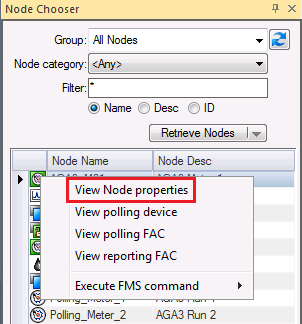
Each Node in CygNet Measurement has its own set of Node properties that define it, in conjunction with its Node type. This information is contained in the Node property pages, and can be accessed via the Session menu or via several menu shortcuts in FMS Explorer for viewing or editing purposes.
View Node Properties can be selected from the following locations within FMS Explorer.
Users with the required authorization level can view or edit* Node properties.
*Note: Editing functionality is only available in systems licensed for FULL mode.
Node properties can also be accessed from CygNet Explorer. See Viewing and Editing Node Properties in CygNet Measurement for more information about this usage.
You must have proper security authorization to view and edit Node properties. See FMS Security (and NODE security event) for information about configuring security access.
Node properties of the following Node types can be viewed from the Node Properties dialog box and property pages.
|
|
Gas Meter Device Node |
|

|
Station Meter Node | |
|
|
Chromatograph Device Node |
|
|
|
Liquid Device Node |
|
|
|
Accessory Node |
|

|
General Group Node |
|

|
Station Group Node |
To View FMS Node Properties
 Properties in the Node section of the ribbon to access the Properties dialog box for the currently displayed Session Node. See Using the Session Menu for more information.
The Properties dialog box displayed contains several properties tabs, specific to the type of FMS Node selected, that describe the Node.
When the selected Node is a group, group entry properties can be viewed in the Node Properties dialog box. The group Node's member Nodes are listed by Node name. The Node name is resolved as of the Point in Time selected for your system view. Attempting to view group entry properties for a point in time when the member Node did not exist will display "NodeId: X" rather than "Node Name" in the list.
See one of the following topics for detailed information about properties corresponding to your specific Node type.
You can edit Node properties in the dialog boxes displayed, if you have proper security authorization.
Edits to certain properties can only be applied for the entire span of the Node. These Node properties are indicated in the properties tables for each Node type. These data properties, and the [property page] where they can be found, include the following.
Since the supported data types for a device Node affect the entire span of the Node, once data is collected for a supported data type, it is no longer editable as a property. See the following Device Properties pages for more detailed descriptions of supported data for each device type.
More:
 Viewing and Editing Gas Meter Node Properties
Viewing and Editing Chromatograph Node Properties
Viewing and Editing Liquid Device Node Properties
Viewing and Editing Accessory Node Properties
Viewing and Editing General Group Node Properties
Viewing and Editing Station Group Node Properties

|
|
|


